I’m excited to share what we covered on the podcast, all about how to use Pinterest collages—one of the platform’s newest visual tools for creators and brands. As a Pinterest Educator, I work closely with the platform to bring the most accurate and actionable updates. Whether you’re curious or ready to experiment, this guide will help you decide whether Pinterest collages are right for your content strategy.
What Are Pinterest Collages?
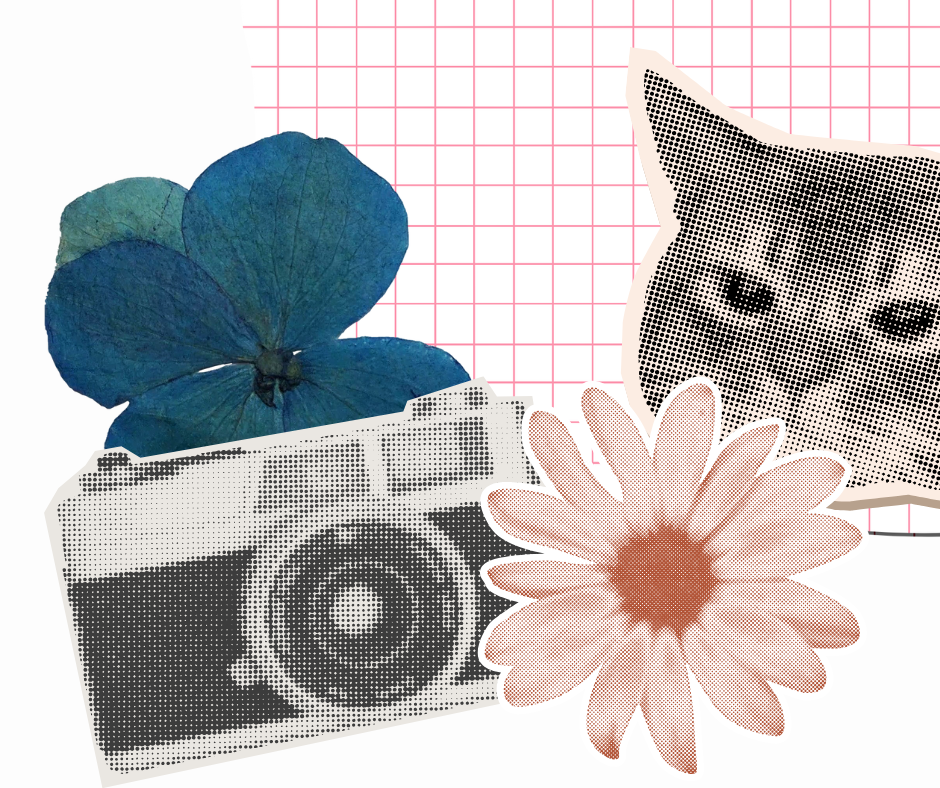
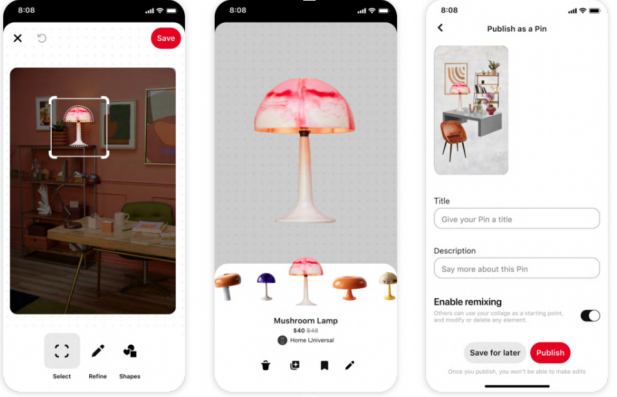
Pinterest collages are interactive pins made up of “cutouts,” which are isolated parts of an image that you can drag, arrange, and group together into a single pin. These cutouts retain the original link and product info, so users can still shop or explore each item individually. Think of it like a digital mood board that’s also clickable and functional.
Related: Check out this Pinterest board dedicated to collages for examples.

Why Use Pinterest Collages?
Collages allow you to tell a visual story in one pin. Instead of showing one item at a time, you can present a full outfit, room makeover, holiday gift bundle, or seasonal recipe lineup all in one image. It’s more engaging, more helpful for users, and more efficient for you. On the podcast, I mentioned how helpful this can be for brands in fashion, home décor, or affiliate marketing. It’s especially useful for helping users visualize how things go together—something traditional pins or boards don’t always accomplish as clearly.
Use Cases for Pinterest Collages
Pinterest collages shine in industries where aesthetics and inspiration matter. Here are some of the best use cases:
- Fashion collages with head-to-toe outfit inspiration
- Home decor roundups with furniture and accessories
- Recipe groups like holiday baking ideas or meal prep plans
- Gift guides, seasonal bundles, or themed product collections
You can also use collages for lifestyle storytelling—showing your product as part of a complete experience, not just a standalone item.
How to Use Pinterest Collages on Mobile
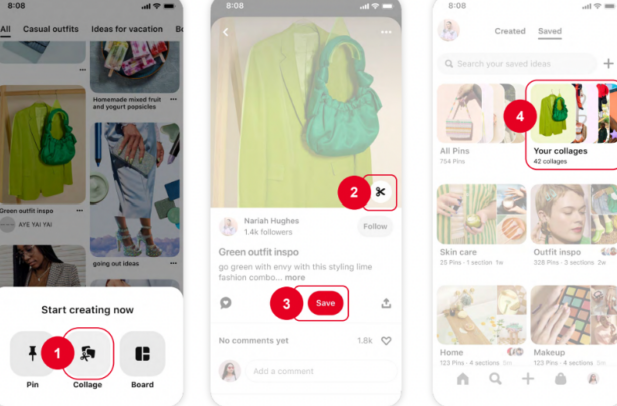
Creating a collage is easy once you get the hang of it, but there’s a learning curve. Here’s how to start:
- Open the Pinterest mobile app on iOS or Android.
- Tap the plus (+) button at the bottom.
- Choose “Pin Collage Board.”
- Browse Pinterest or your saved pins and use the scissors icon to make cutouts.
- Arrange the cutouts on your collage canvas.
- Add a background color, text, or hand-drawn elements if desired.
- Fill out the title, description, and destination link, then publish.
Currently, you can only create collages on mobile—not desktop—which can take some getting used to.
Adding Links to Pinterest Collages
If you’re using collages for business or affiliate marketing, you’ll want to make sure each product cutout retains its clickable link. The key is to start with product pins or shoppable content already uploaded to Pinterest. When you cut them out and add them to your collage, those links and product details stay intact. This makes it easy for users to explore or purchase without extra work on your part.
Want to read this later?
Bonus Features: Remixing and Sharing
One fun element of Pinterest collages is the Remix feature. This lets other users repurpose your collage structure while keeping you credited as the original creator. You can also download your collage as a static image or animated time-lapse to share on other platforms, making your content go even further. It’s an easy way to stretch one idea across multiple channels while still pointing people back to your Pinterest account.
User Feedback on Pinterest Collages
To really understand how people are using Pinterest collages, I had my team, my daughter, and a close friend test them. Everyone found the cutout tool a bit tricky at first, but with practice, it got easier. For businesses, once a cutout is made, it can be reused in other collages, which saves a lot of time. My daughter, who’s a regular Pinterest user, didn’t find collages essential to her current workflow. She prefers boards. But others saw it as a great replacement for tools like Canva or external collage apps—especially since it’s all in one place now.
Should You Use Pinterest Collages?
Pinterest reports that collage pins are saved two times more often than other pin types. Gen Z users are driving much of this engagement, and a large number of collages contain clickable, shoppable items. That’s a strong sign of both interest and performance. Still, the best way to know if they work for you is to test. Track your saves, click-throughs, and other metrics to determine whether Pinterest collages drive real value for your business.
Related: TechCrunch Article- Pinterest Says it’s AI-Powered Collages are Now More Engaging than Pins
Experiment and See What Works
Like any new tool, Pinterest collages will take some time to master. But once you do, they can become a valuable part of your strategy—especially for storytelling, product bundling, and visual inspiration. So pick up your phone, open the app, and try building your first collage. If you create something you’re proud of or want to share how it’s working for you, I’d love to hear about it.
Disclaimer: Kate Ahl is a Pinterest Partner and one of six official Pinterest Educators. Her partnership with Pinterest helped inform and shape the content of this episode to ensure accuracy and up-to-date guidance.
Sources:
Pinterest Internal Data, Global, Jan 2024
Related Resources Mentioned in the Podcast Episode:
Pinterest Article: Collages- What Are They and How to Make Them
Create a Collage | Pinterest Help Article
Example Set of Collages with Shoppable Links
The Simple Pin Media Test Collage
Tech Crunch Article: Pinterest Says it’s AI Powered Collages Are Now More Engaging Than Pins